

Consider using the shared components the next time you need to update your documents, and leave your existing layouts as they are if they already work well.
I tested this using Microsoft’s demo data, and a copy of Microsoft’s standard invoice layout needed some adjustments before it displayed correctly.
Business Central brings three components together
When the report is run, the final document is assembled from:
Body: the report's own data, lines, and totals. Only a Word layout with the Body subtype can use the shared components.
Theme: fonts and colours, stored as a Word template (.dotx).
Header/Footer: the content displayed at the top and bottom of each page, stored as a Word document (.docx).
If you update a custom theme or header/footer, the changes apply to all reports that use it.
Before you get started
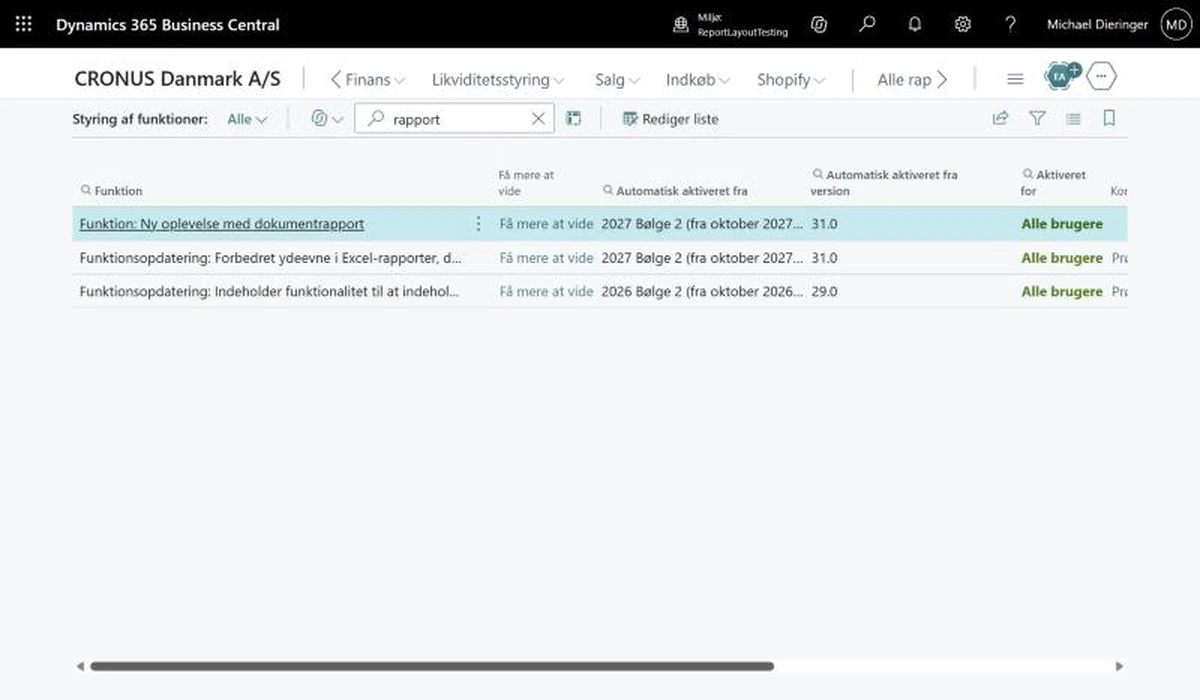
The feature is called Feature: New Document Report Experience on the Feature Management page. In my new sandbox running version 29.1, it was already enabled for all users, and according to the page, it will be enabled automatically starting with version 31.
Check the settings in your own environment and test the feature in a sandbox before your colleagues start printing invoices with the new design.
Start with Microsoft's ready-made components
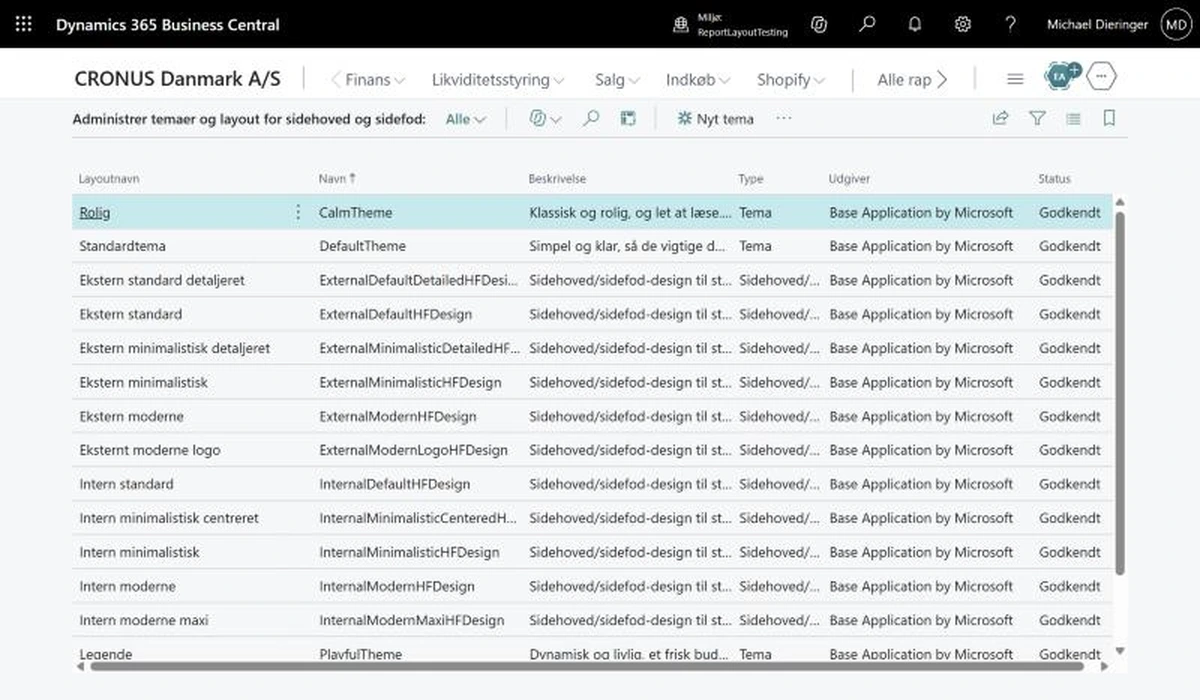
You can select Microsoft's ready-made components without opening Word. On the Manage Report Themes and Header/Footer Layouts page, you'll find four themes and twelve header/footer layouts provided by Microsoft, all of which are already approved.
The themes include names such as Calm and Playful, while the header/footer layouts range from External Minimalist to External Modern Logo, featuring logos, contact details, and banking information.
Choose where the components apply
A setting for an individual report takes precedence over the company setting, and the company setting takes precedence over the global default. You can select the theme and header/footer independently:
All reports across all companies, using Add Global Default on the Report Theme and Header/Footer Defaults page.
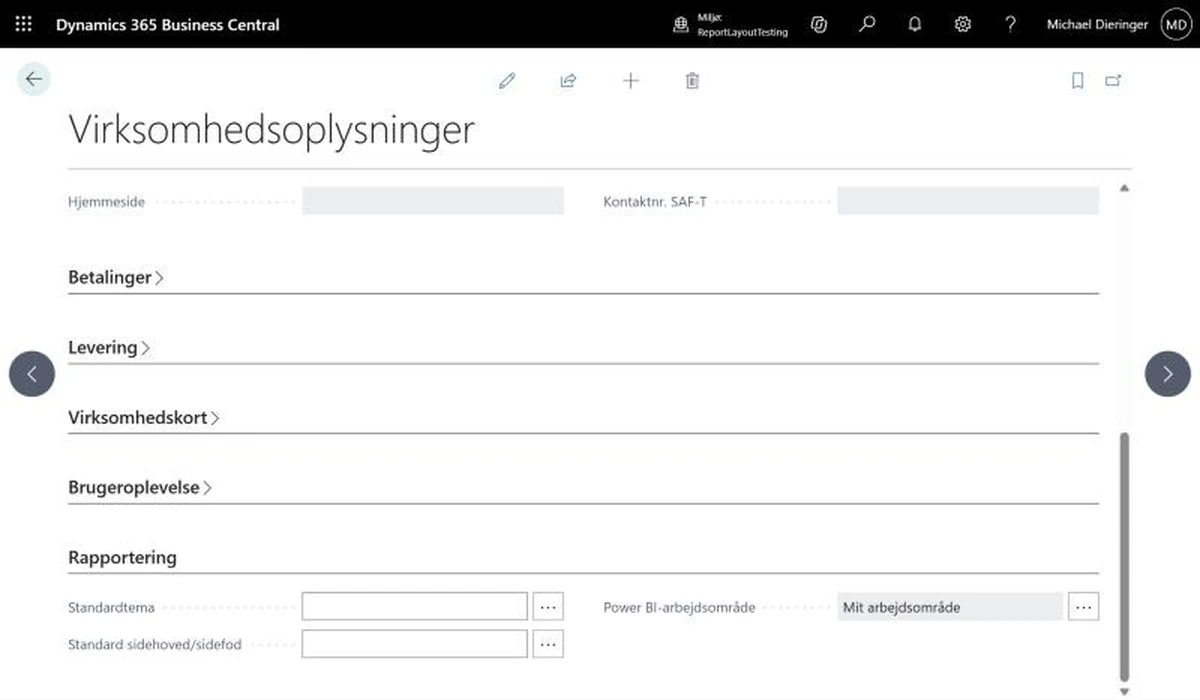
All reports within a single company, using the Default Theme and Default Header/Footer fields under Reporting on the Company Information page.
An individual report or layout, using Set for One Report and Set for One Layout on the report defaults page.
If you have only one company, a global default is sufficient. If you manage multiple companies with different brand identities, you can assign a separate header/footer to each company while sharing the same theme.
Prepare your invoice layout
Microsoft's Sales - Invoice layout uses the Standard subtype, which cannot be changed afterwards. You therefore need to create a new layout by selecting New on the Report Layouts page. Choose Word under Format Options and Body under Subtype, then upload your Word file or start with a blank layout.
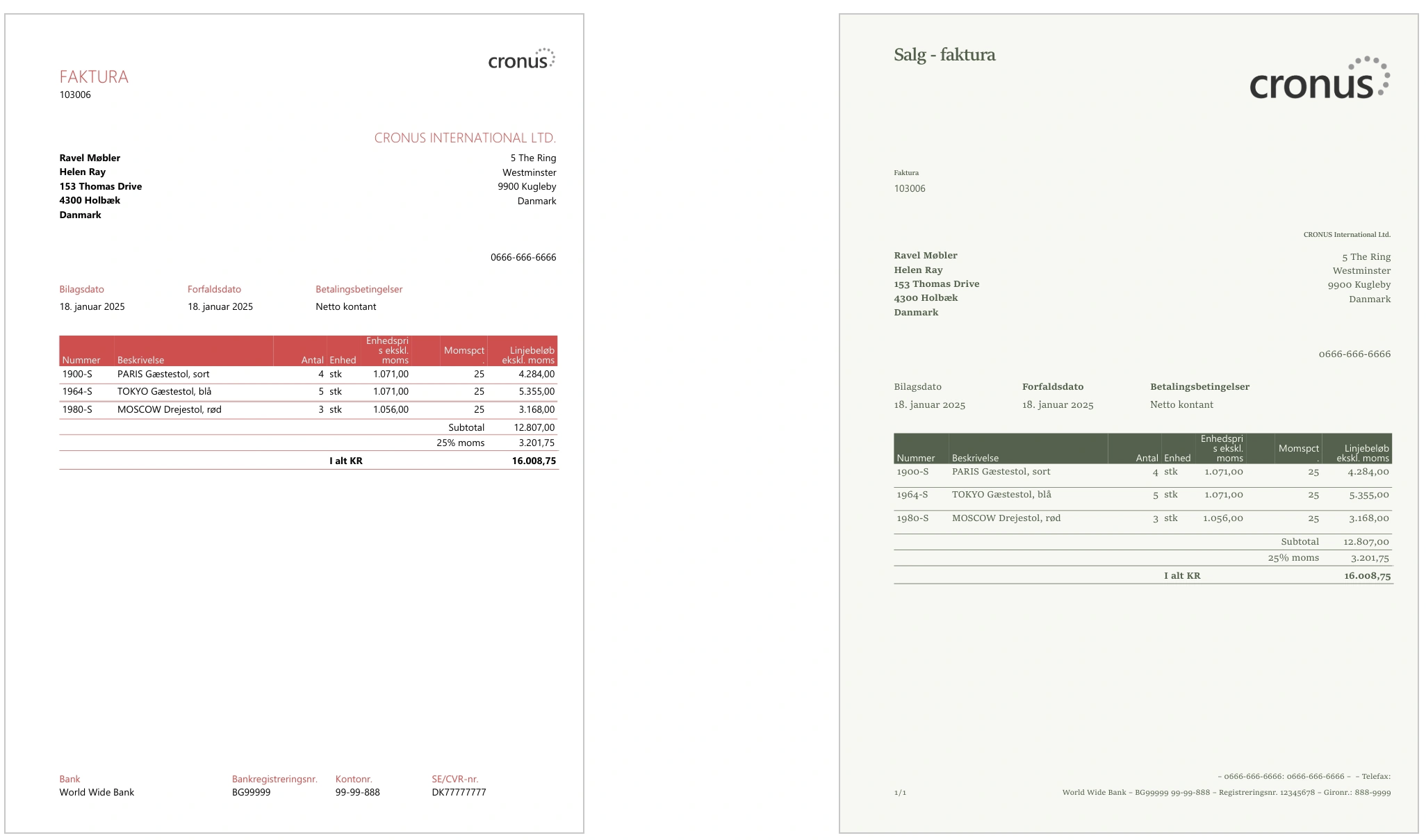
I migrated a copy of Microsoft's invoice layout to use the shared components and identified three things you should check:
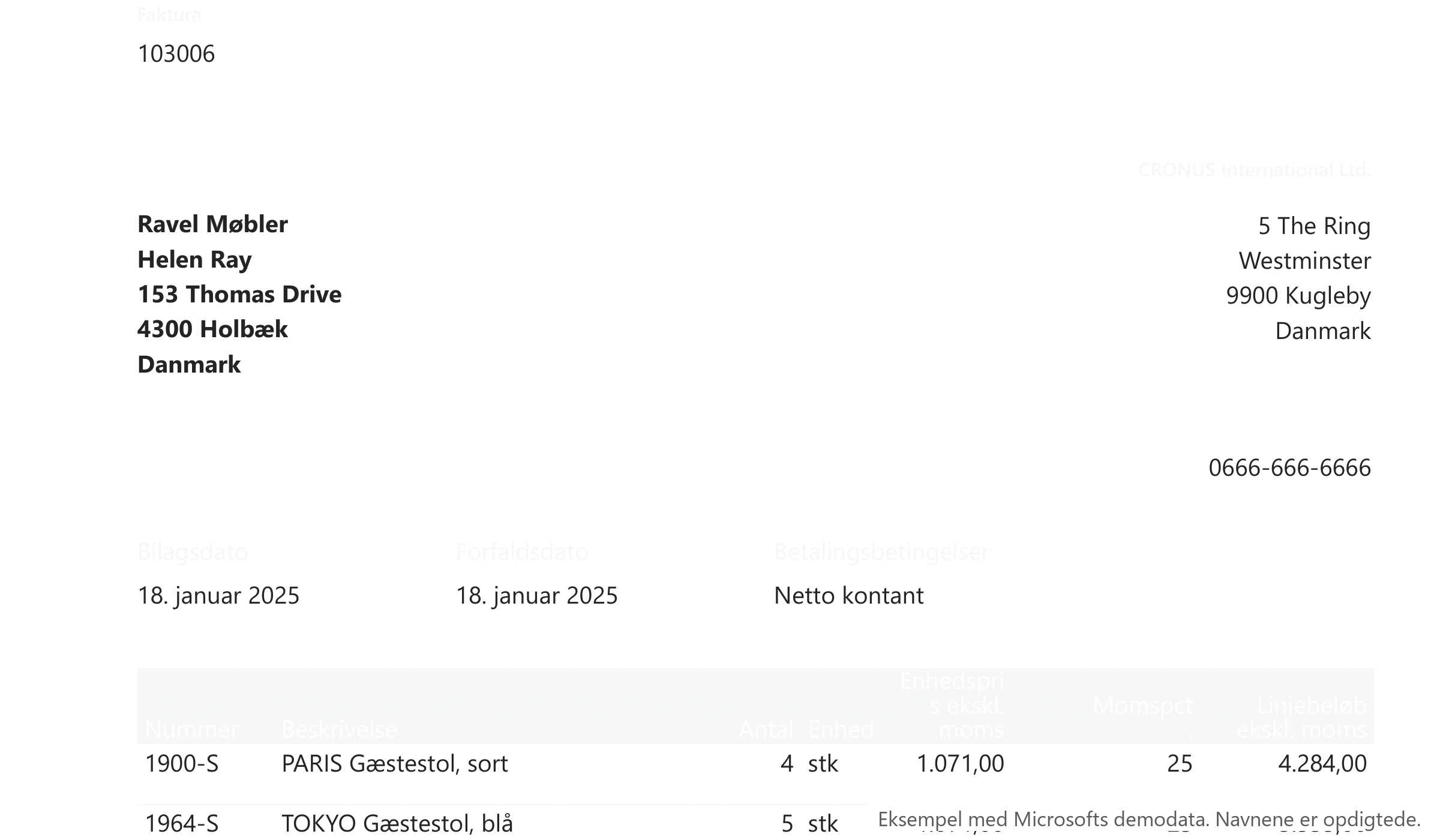
The layout's original footer disappeared and was replaced by the shared footer. Make sure everything from the original footer is included in the new one. In my tests, bank details appeared in some headers, but the company registration number was missing from all three layouts I tried.
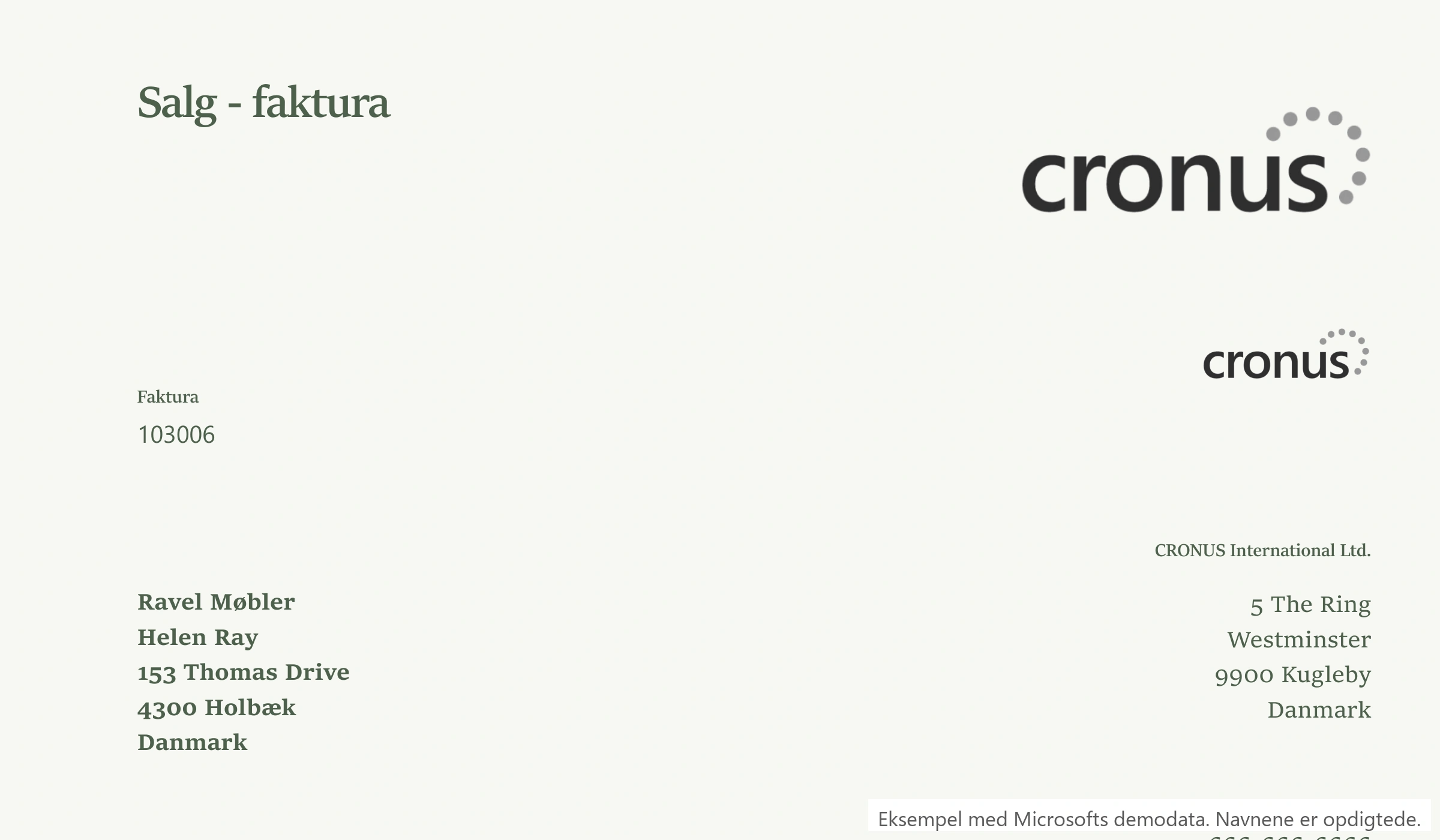
Logos and company names in the layout itself remain in place. When I selected a header that also contained a logo, the logo appeared twice. Remove it from the document body.
Text may become invisible. With the Default Theme and External Standard header, the headings and company name on my invoice appeared as white text on a white background. Always check a print preview with each theme before sending customers an invoice they cannot read.
Create your own components
If you want a custom design, create the theme and header/footer in Word and upload them on the Manage Report Themes and Header/Footer Layouts page using New Theme or New Header/Footer. New components initially have Draft status and cannot be selected until they have been approved.
Use it when you need to update your documents anyway
For example, when introducing a new design, changing your company name, or going through a merger. You make the necessary adjustments once, and the next time you need to update the design, you only have to change it in one place.
My Recommendations
Start using the shared components the next time you need to update your documents, and leave your existing layouts unchanged if they already work well.


