

When working in Business Central as a user, the screen can quickly become crowded with information. This is especially true on pages such as the Customer Card, where both data fields and fact boxes compete for space.
In Business Central 2025 wave 1, Microsoft has introduced a new feature that makes it possible to utilize screen space more effectively. The feature is called "Optimize screen space usage"—and as a user, you must enable it yourself.
In this article, you will get a short guide on how to enable the feature and what benefits it provides.
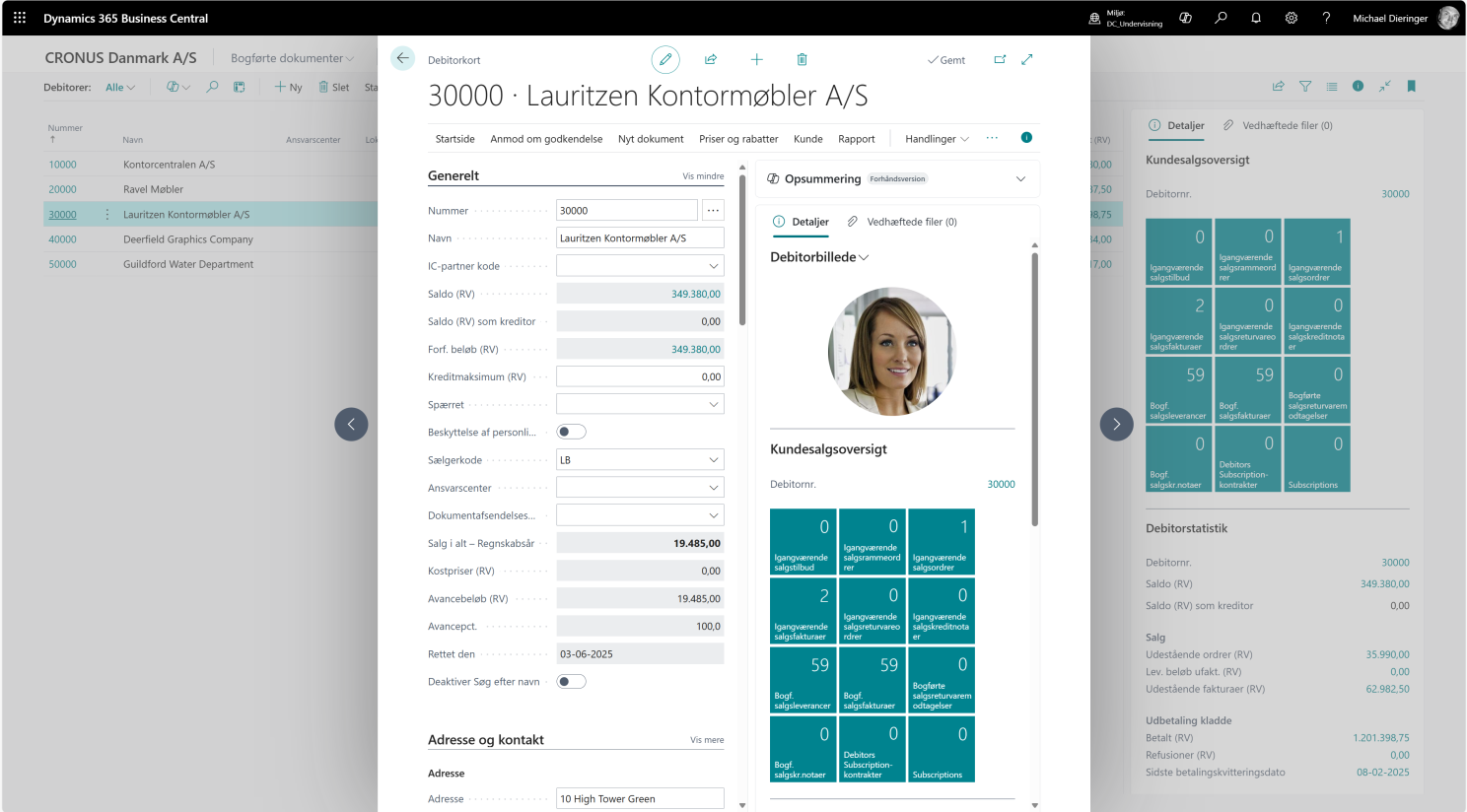
This is how the Customer Card looked previously
The article highlights the Customer Card, but it applies to all lists and cards with fact box areas in Business Central. Before activating the new feature, screen space on pages such as the Customer Card was not always used optimally. In particular, the fact box panel (the right-hand panel with customer sales overview, etc.) put pressure on the center panel, where the most important master data is displayed.
In the image below, you can see an example of how the page typically looked before:
Enable "Optimize screen space usage"
To take advantage of the new feature, you need to enable it yourself. You do this in Feature Management, which you can find via the search field (Alt&Q) in Business Central.
Here, locate the feature "Optimize screen space usage" and enable it for all users.
Example:
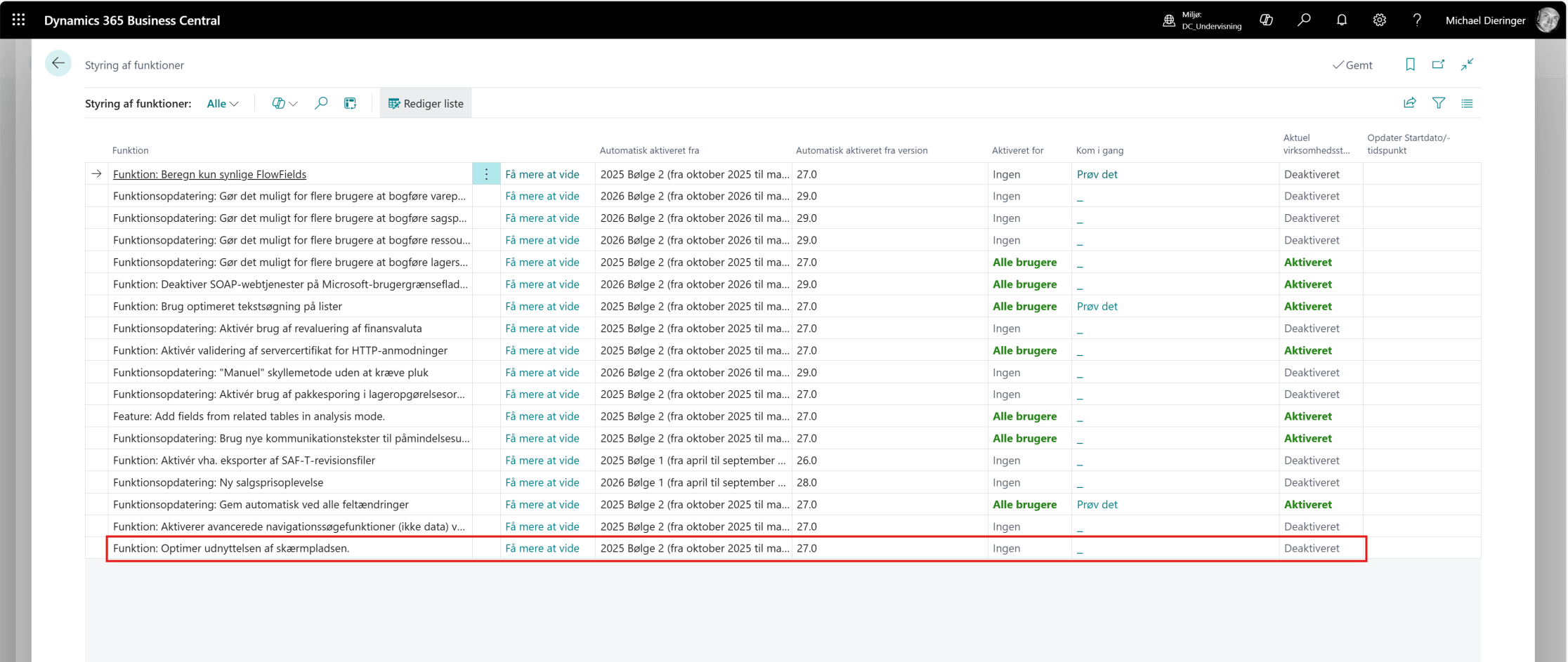
Once you have enabled the feature, Business Central will inform you that the change will only take effect after you log out and log back in:

It is therefore important to log out and log back in again before you can see the difference.
The result – a new Customer Card with improved screen space
After logging in again, you will see that the view now utilizes the screen space more effectively.
Here is an example of the same Customer Card after enabling the feature:
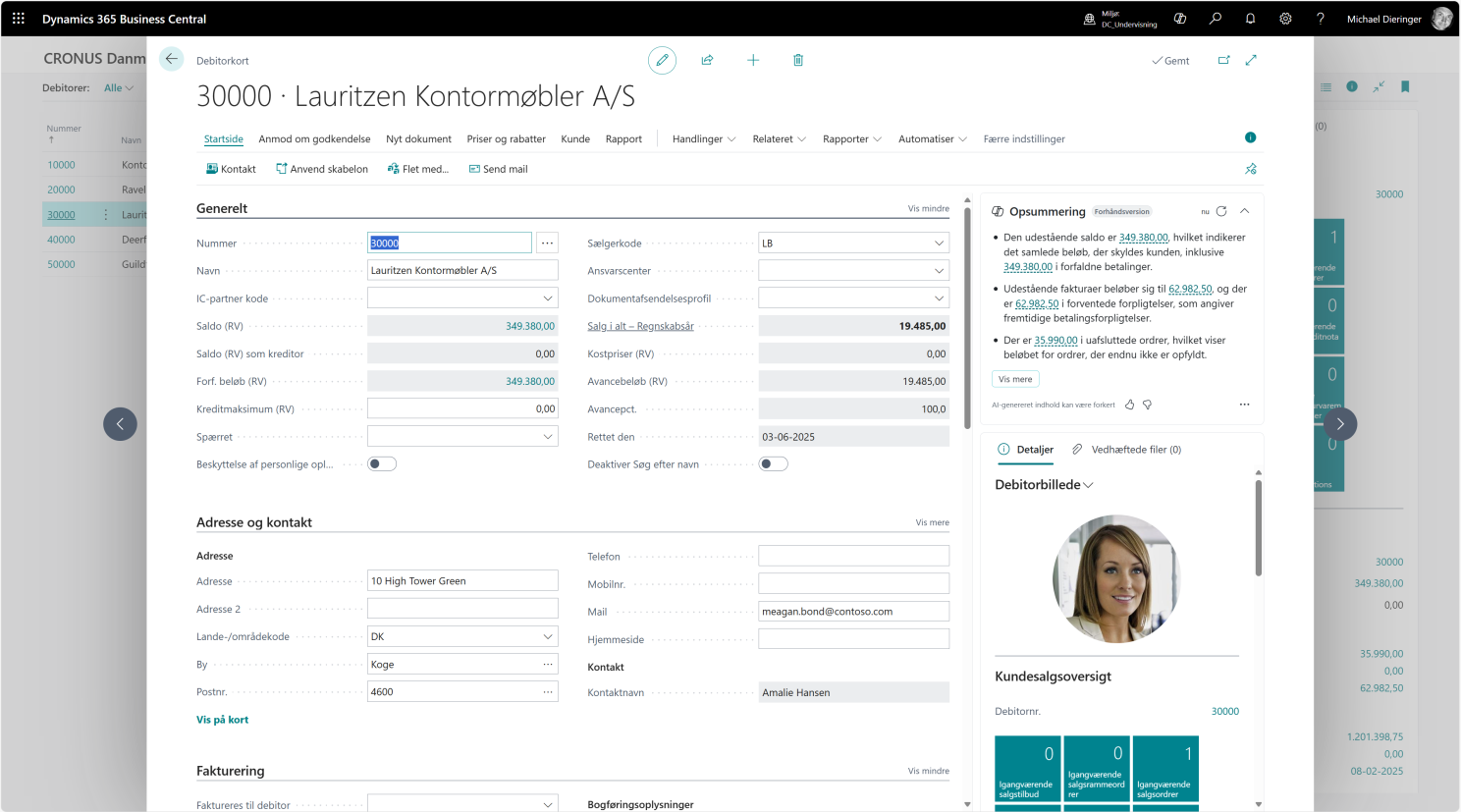
You will notice that the center panel now has a bit more space, and that there is generally less wasted space in the layout.
Adjust the width of the FactBox pane
With the new feature, you also have the option to adjust the width of the FactBox pane yourself.
You simply do this by dragging the edge of the pane (highlighted with a red marker in the image below) until it has exactly the width you want.
Here is an example where the FactBox pane has been adjusted, along with an indication of where to adjust it:
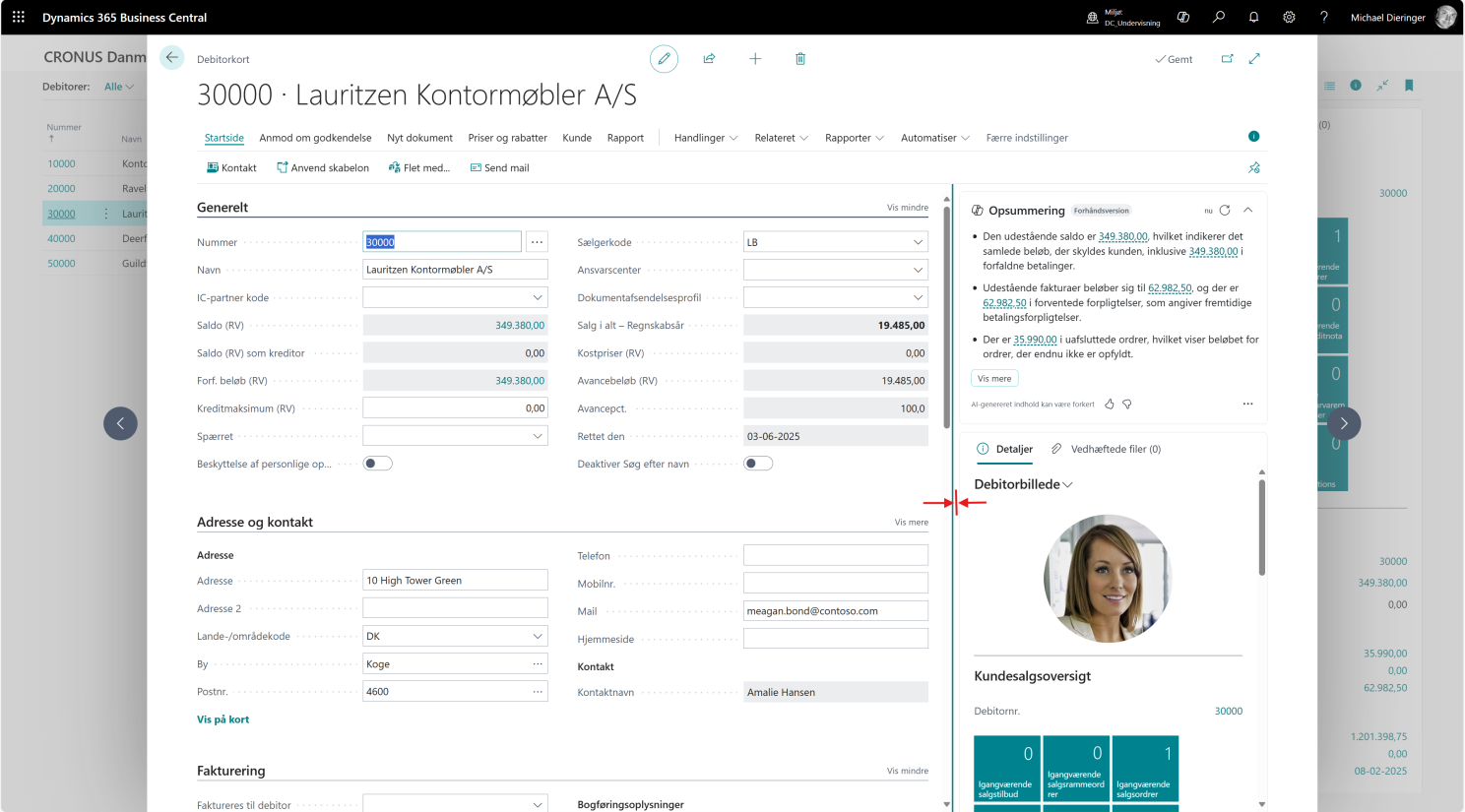
This makes it easier to adapt the screen layout to your needs—depending on whether you want to focus primarily on master data or on FactBoxes.
Short summary
- The "Optimize screen space usage" feature makes it possible to utilize screen space more effectively in Business Central.
- The feature must be enabled manually under Feature Management.
- The change takes effect after you log out and log back in.
- After activation, the center panel gets more space, and you can adjust the width of the FactBox pane yourself.
This is a small, but very practical improvement for those who work with Business Central on a daily basis.


